Getting started
Overnite runs coding agents - Claude Code, Codex, opencode and Gemini CLI - on cloud machines that keep working when your laptop is closed. You watch them in the cockpit at app.overnite.dev, answer their questions from your phone, and get a pull request back.
Five steps, about ten minutes.
Closed beta. Overnite lets people in a few at a time. If you sign in before you are invited, you land on the waitlist, and we email you when you are in.
1. Sign in with GitHub
Open app.overnite.dev and choose Continue with GitHub. Your GitHub account is your Overnite account: there is no password, and the name and address on your commits come from your GitHub profile.
2. Give your agents a way in
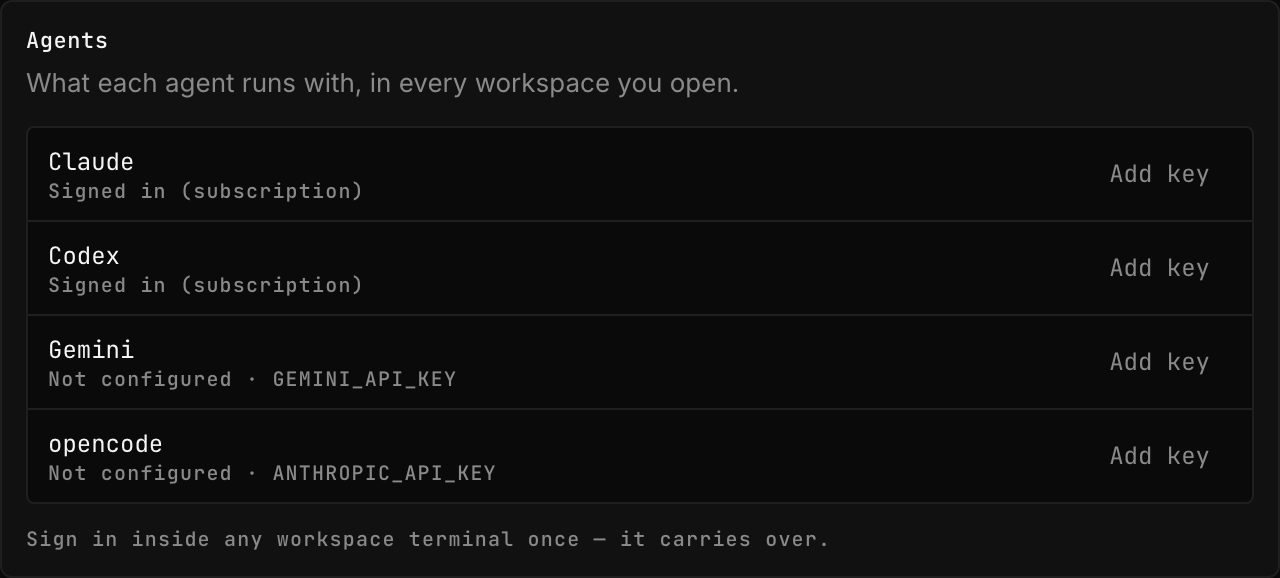
An agent needs credentials for its model provider. Settings → Agents lists every agent Overnite can start and what each one has. There are two ways in, and either is enough:
- A key. Paste an Anthropic, OpenAI or Gemini API key. It is encrypted and only ever reaches the one kind of agent you saved it for.
- Your subscription. Start the agent without a key and sign in inside its
terminal, once - Claude Pro/Max with
/login, ChatGPT Plus/Pro with Codex's device code, Google with Gemini's link. Overnite keeps the login for you, so every later workspace is already signed in, and Settings shows Signed in (subscription).
Agents has every sign-in flow, and which agent to pick for what.
3. Create a workspace
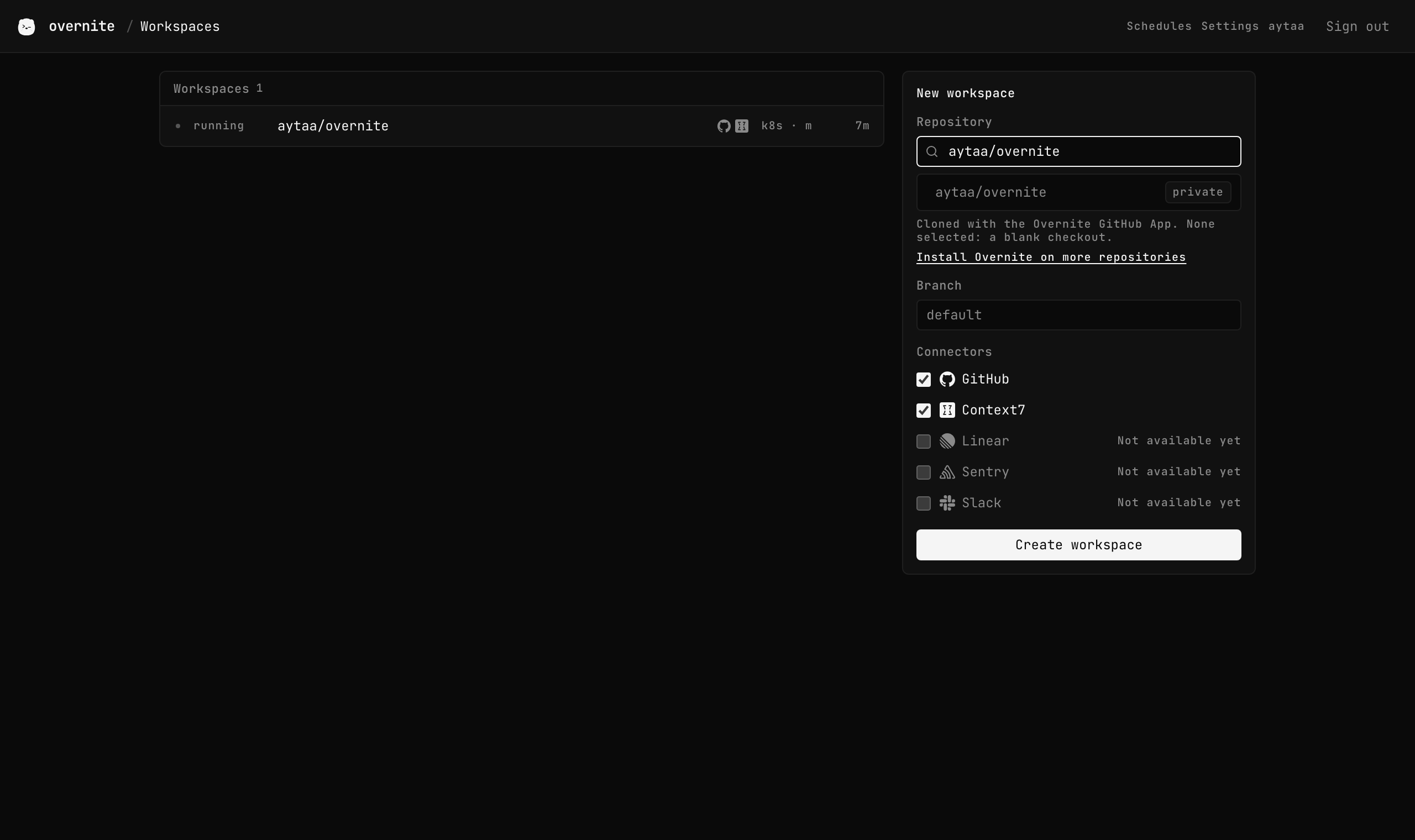
A workspace is a machine with one repository checked out. On Workspaces, the new workspace form lists the repositories you can start on.
The first time, the list is empty: choose Install Overnite on your repos. GitHub asks which repositories the Overnite GitHub App may use - pick one or a few, not all - and sends you back. Pick a repository and a branch, and Create workspace. The workspace reads creating while its machine starts and the repository clones, then running - usually within a minute.
A workspace sleeps after 30 minutes with nothing happening, and wakes when you open it or start an agent. Its disk - the checkout, your branches, the agents' conversations - stays while it sleeps.
4. Start an agent
In the workspace, the new agent form at the top of the agent list: pick the agent, type the task, choose Auto or Ask, and Start agent.
Add a Contributing section to the README that explains how to run the tests.
The terminal is the agent's own, streamed live. Each agent works in its own git
worktree, on its own branch (ovn/<agent id>), so two agents never edit the same
checkout. When it is done, it pushes the branch and opens a pull request if you
asked it to - or ask it in the terminal.
5. Answer from your phone
An agent on Auto - the default - works on its own and stops only for a real question. Start it on Ask and it asks before every edit and command. Either way, when it waits for you its status turns blocked and the cockpit shows the question with a button for each answer.
To be told when that happens:
- On your phone, open app.overnite.dev. On an iPhone, first add it to your Home Screen (Share → Add to Home Screen) and open it from there - iOS only notifies installed web apps.
- Settings → Notifications → Turn on, and allow notifications.
- Send test, to see one arrive.
From then on a waiting agent taps you on the shoulder. The notification carries the first two answers as buttons; tap one, or open it to see the whole screen.
Which agents ask what, on Auto and on Ask: Agents.
What next
- GitHub App: start an agent from an issue with
@overnitedev fix the flaky test. - Connectors: give agents GitHub and up-to-date library docs as tools.
- CLI: let an agent start and supervise other agents with
ovn. - Plans & limits and Security: what runs where, and for how long.